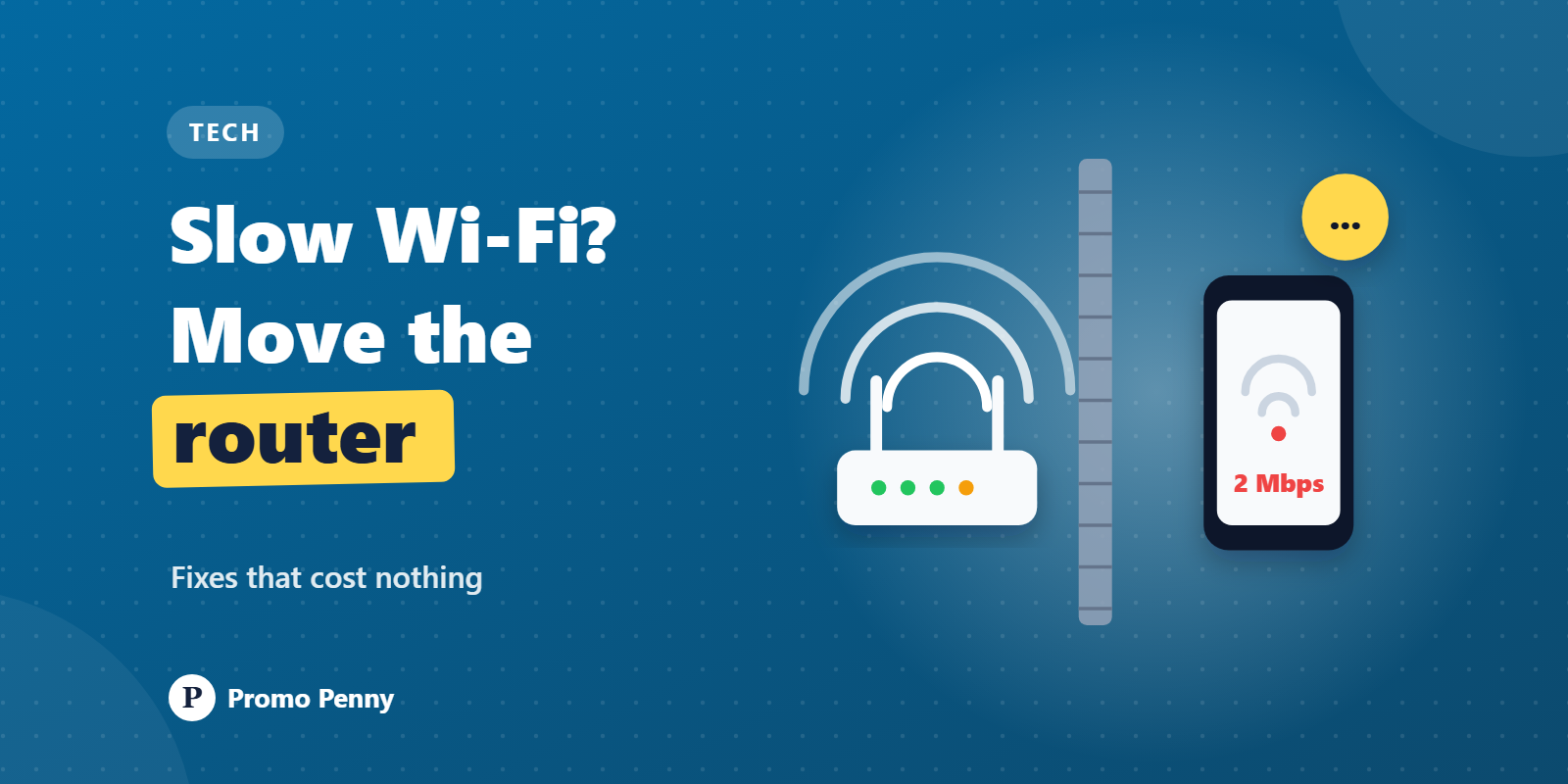
Here is the first thing to know: when your Wi-Fi feels slow, the internet connection itself is often fine. The weak link is usually the last few metres, the wireless hop between your router and your phone. Fix the wrong thing and you can pay for a faster plan and still get buffering in the bedroom.
So the order matters. First work out where the slowness lives. Then fix that.
This simple test settles whose problem it is, yours or your internet provider's.
Now compare. Say your plan is 100 Mbps, purely as an example.
Two small traps. Some older routers have LAN ports limited to 100 Mbps, which will cap a faster plan even on a cable. And a test at 9 pm, when the whole building is streaming, can look very different from one at 9 am. Test at a few different times before you decide. TRAI, the telecom regulator, also has its own speed-test app called MySpeed if you'd like a second opinion.
Wi-Fi is radio. It spreads out from the router and gets weaker with distance and with every obstacle in the way. Yet routers usually end up wherever the installer brought the cable in: behind the TV, on the floor in a corner, inside a cupboard.
Better spots:
If the cable point is in a bad spot, ask your provider to shift it, or use a longer LAN cable.
Not all obstacles are equal. Homes with thick concrete and brick walls, which describes a lot of Indian flats, are much harder on Wi-Fi than homes with thin partitions.
Try moving the router a single metre and testing again from your problem room. Small changes often make a surprisingly large difference.
Most modern routers broadcast on two bands, and sometimes show them as two networks, like “HomeNet” and “HomeNet_5G”. The “5G” there means 5 GHz. It has nothing to do with 5G mobile data.
| 2.4 GHz | 5 GHz | |
|---|---|---|
| Range | Longer, better through walls | Shorter, weaker through walls |
| Speed | Lower | Much higher |
| Crowding | Very crowded, few clear channels | Less crowded, many more channels |
| Best for | Far rooms, smart plugs, older gadgets | TVs, laptops and phones near the router |
A practical approach: use 5 GHz for anything in the same room or one wall away, and let far-off devices fall back to 2.4 GHz. Many routers combine both bands under one name and steer devices automatically. If that steering misbehaves, splitting them into two names gives you control.
Open the Wi-Fi list on your phone in a typical apartment block and you may see twenty networks. They all share a limited set of channels. On 2.4 GHz there are only three channels that don't overlap each other, usually 1, 6 and 11. When several neighbours sit on the same channel, devices have to take turns, and everyone slows down, especially in the evening.
What helps:
If the router is well placed and one room is still weak, you need a second access point. There are two common ways to get one.
A Wi-Fi extender, also called a repeater, is a small box that plugs into a wall socket, picks up your router's signal and rebroadcasts it. It's cheap and easy. The catch is that many simpler extenders use the same radio both to listen to the router and to talk to your device, which can cut the speed in that room a lot. They often create a separate network name too, so your phone may cling to the weaker one. Placement decides everything: put it halfway, where the signal is still decent, not in the dead room itself.
A mesh system uses two or more matching units that work as one network with a single name. Your phone switches between them as you walk around, and better systems keep a dedicated radio link between the units, so speed holds up well. It costs more, but for a large flat, a duplex or a house with several floors, it usually beats a chain of extenders.
The best option, if you can manage it, is a cable. Run Ethernet to the far room and put a second access point or mesh unit there. A wire between units beats any wireless link.
The one idea to keep: test before you spend. A cheap LAN cable and ten minutes of testing will tell you whether your money belongs with your provider or with a better spot for your router.































© 2026 Promo Penny. All rights reserved
Designed & Developed by IngeniousPro Team.